
Congratulations! Your guide to a smooth switch.
Moving to new software is an exciting step. We've prepared a step-by-step guide that takes you from the moment your data leaves the old software to the moment your clinic runs 100% on Medform.
Data import and validation
Once we connect to your old software and pull the data into the cloud, we'll give you a temporary username so you can spot-check a number of patients. The goal: make sure everything came across correctly.
What should you check?
- Treatments: Treatment descriptions, dates performed, tooth numbers, treatment plans and prices.
- Patient and financial details: Make sure patient details came across correctly and that the patient balance in the Account tab matches the source.
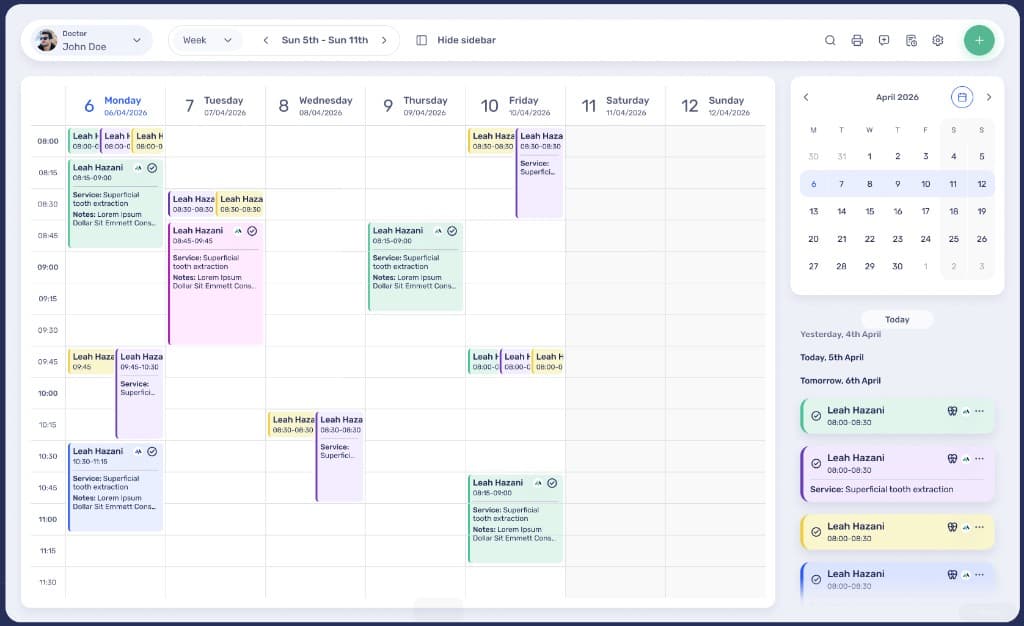
- Calendar and templates: Check that calendar appointments match and that treatment templates came across.
- Settings and users: Basic business settings, price lists and users in the system.
Critical: automatic invoices
If your old system has open receipts (invoices the system is scheduled to issue automatically in the future), you must do two things:
- Export a full list of all invoices that were scheduled to be issued and let the Medform team know.
- Make sure the old system stops issuing invoices automatically immediately after the switch.
Training and hardware setup
Once we've confirmed the data is correct, we'll move on to training your team and connecting your equipment.
- Team training: We'll schedule one structured training session for your entire staff. Because Medform is highly intuitive, one session is usually more than enough.
- Connecting peripherals: After the training, the Medform team will set up your medical scanners and X-ray devices (if you have any).
- Card payments: If you have a payment processing connection with Tranzila, make sure you have your merchant number so we can connect your payments to the system.
The actual switch (go-live)
At the end of the training, we'll set the actual switch date. To ensure a smooth transition and avoid "data gaps," smart syncing is required:
- Smart timing: It's best to choose a switch date at the end of a shift or on a day the clinic is closed.
- Why does it matter? Between the moment we take the data and the moment it's live in the cloud, new data can keep coming into the old system and create a gap. That's why it's better to use a day off, when you can switch calmly without the pressure of patients waiting.
Settings and fine-tuning
After the actual switch, the Medform team will help configure the system together with your clinic staff. We've split this stage into what you should prepare in advance and what we'll do together.
What to prepare in advance:
- •Message templates: Prepare texts for SMS/WhatsApp.
- •Form templates: Referrals and certificates in your preferred wording.
- •Users: A list of permissions for staff and physicians.
- •Israel Invoice: Your personal code from the Israel Tax Authority (6 characters).
What we'll set up together:
- •Business settings: Accounting, documents and calendars.
- •Online booking: Which services can be booked online.
- •JETT AI: A smart assistant for summarizing treatments and conversations.
- •Automations: Recalls, reminders and lead intake.
How to prepare your clinic for a smooth switch
A successful software switch starts with simple preparation: choosing contacts, checking sample data, scheduling training and listing the settings your team wants on day one.
A main point of contact
We recommend appointing one person to collect questions, checks and feedback from the team so the switch moves forward in an orderly way.
Spot checks
Pick a few patients of different types and check treatments, balances, appointments, templates and users before approving the switch.
A settings list
Prepare message templates, forms, permissions, lead channels and external connections that matter for day-to-day work in advance.
Support and guidance every step of the way
Remember, the first few days take some getting used to, and that's completely natural. We're here for any question, to make sure you get the most out of the system.
Support hours
Sunday–Thursday, 09:00 to 18:00.
How to reach us
The simplest and most efficient way is through the chat inside the software for a quick response.
Best of luck — we're with you every step of the way!
Frequently asked questions about switching to Medform
Answers to common onboarding questions: data validation, invoices, go-live and customization after the switch.
How long does it take to switch to Medform?
The time it takes depends on the amount of data, your old system and your team's availability for checks. The process is built in stages: data import, validation, training, go-live scheduling and adjustments after the switch.
What should I check after the data import?
Check sample patients, treatments, dates, account balances, the calendar, templates, price lists, users and staff assignments to make sure the information came across correctly.
How do I handle automatic invoices from the old system?
If there are receipts or invoices scheduled to be issued in the future, export them, let the Medform team know and make sure the old system stops issuing them immediately after the switch.
When should I schedule the actual switch date?
We recommend switching at the end of a shift or on a day the clinic is closed, to minimize data gaps and let your team start working in Medform calmly.
What should I prepare for the customization stage?
Prepare message templates, form templates, a list of users and permissions, your Israel Invoice code, lead channels and external connections such as calendars and email.
It's time your clinic worked for you — not the other way around.
Hundreds of clinics already save dozens of hours a week with Medform. First month free, set up in minutes — cancel anytime.
Set up in minutes · 24/7 support, including AI agents